 SnapBillToStock
Supplier invoices to
Shopify stock, in a minute.
SnapBillToStock runs inside your Shopify admin. Upload a supplier bill and it fills in what you would otherwise type: products, costs and incoming stock, matched to the catalogue you already have.
Launching on the Shopify App Store; join the waitlist and we’ll email you when you can install it. Your first 5 bills are free.
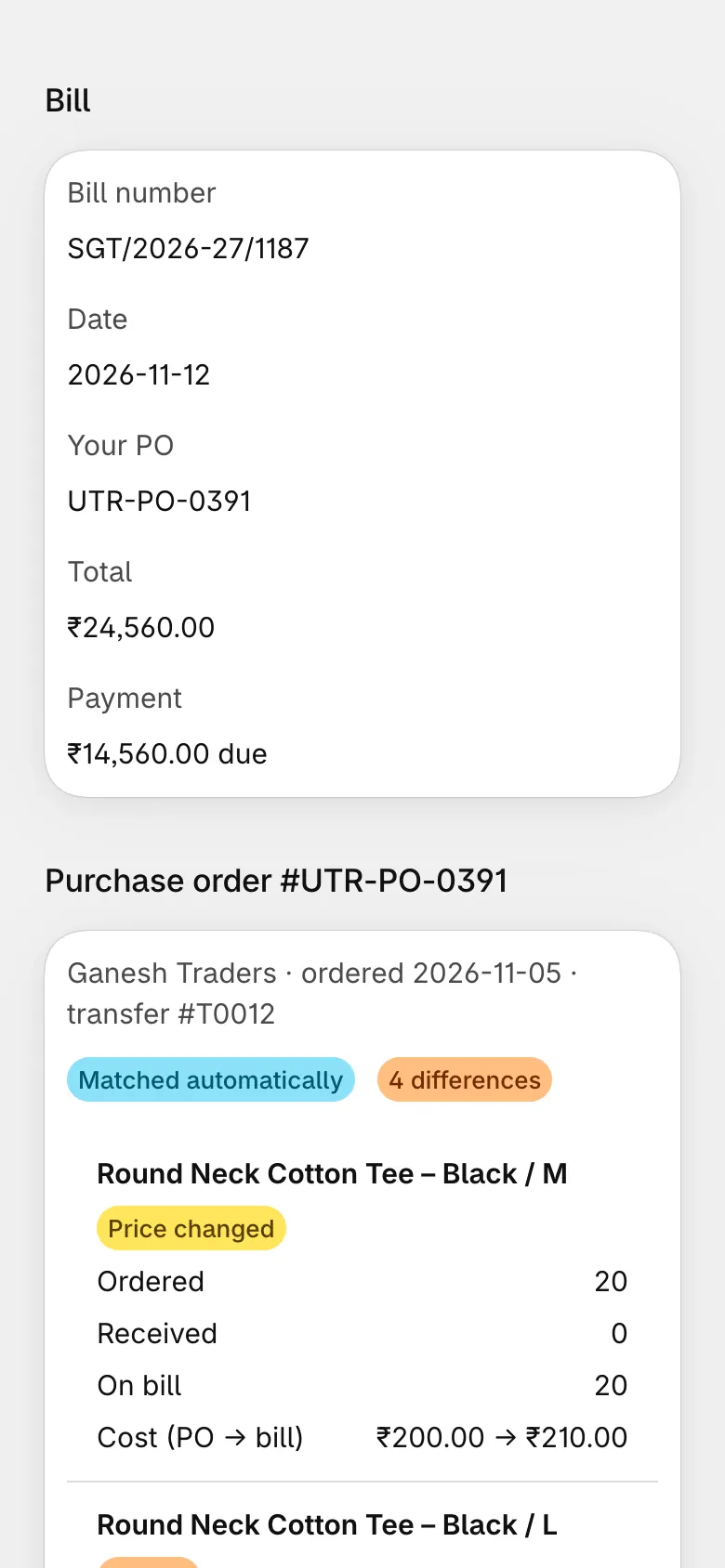
See it in 2 minutes
Snap a bill, match every line, turn cartons into units, check the purchase order, bring the stock in and receive it with a count sheet. Narrated, with captions. Sample data.
Any bill your suppliers send
Phone photos (even at an angle), scans, PDFs, CSV and Excel. Several photos of one long bill are read as one bill; a file with several invoices becomes several bills.
- JPG, PNG, HEIC, PDF, CSV, XLS/XLSX
- Up to 10 files per upload: 20 MB per file, 40 MB in total, PDFs up to 50 pages
- Long bills (hundreds of lines) are read in parallel parts
- The same files again within 24 hours open the first upload; they aren’t read or counted twice
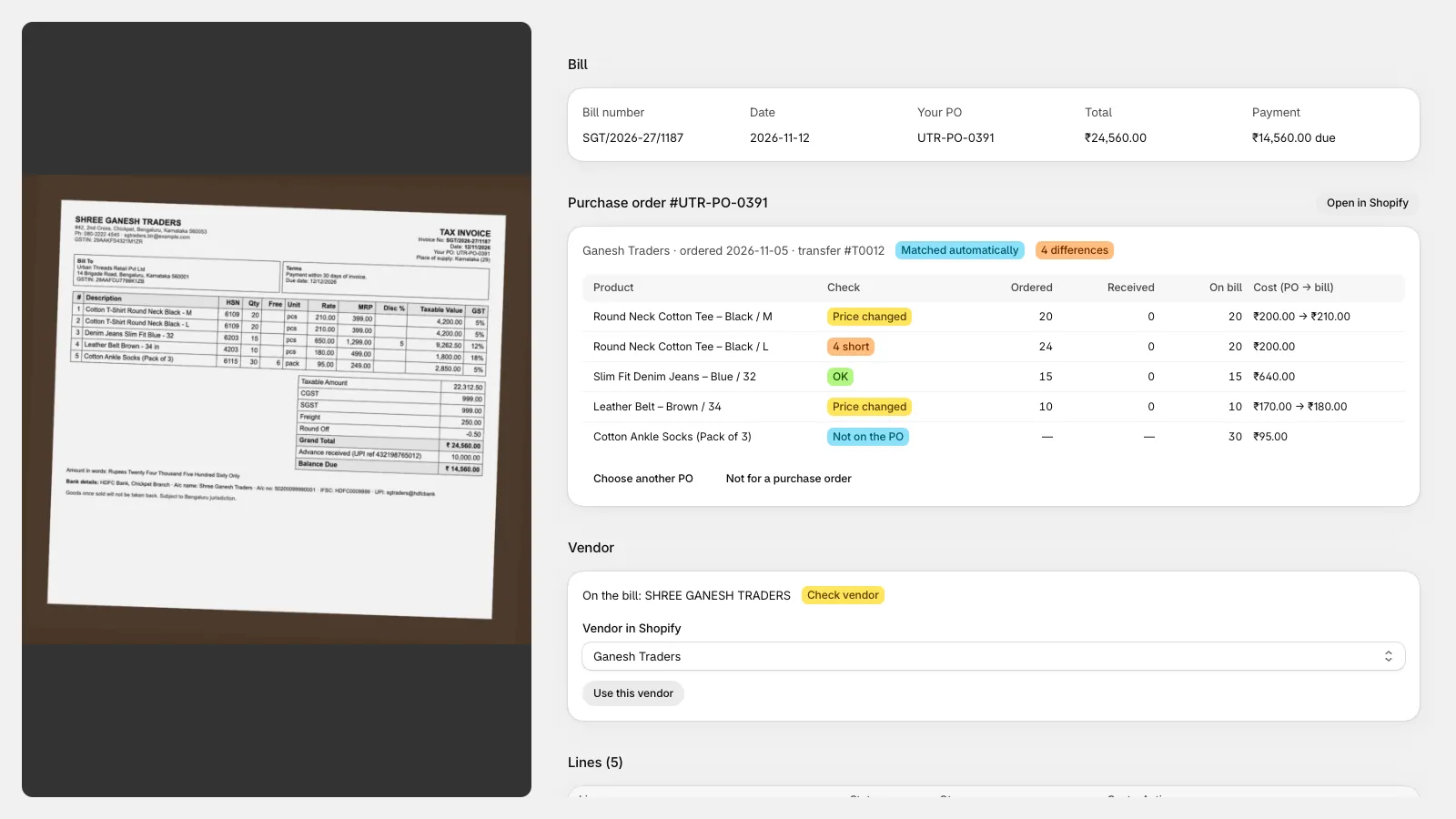
Every line matched to your products
By barcode, SKU, name and variant, plus what you confirmed before for that supplier. Anything unsure is a suggestion for you to confirm, never a silent guess.
- Matched, Check match, New product, Skip: clear status per line
- “Change” opens Shopify’s product picker
- Your choices are remembered per supplier
- Unknown items become new draft products
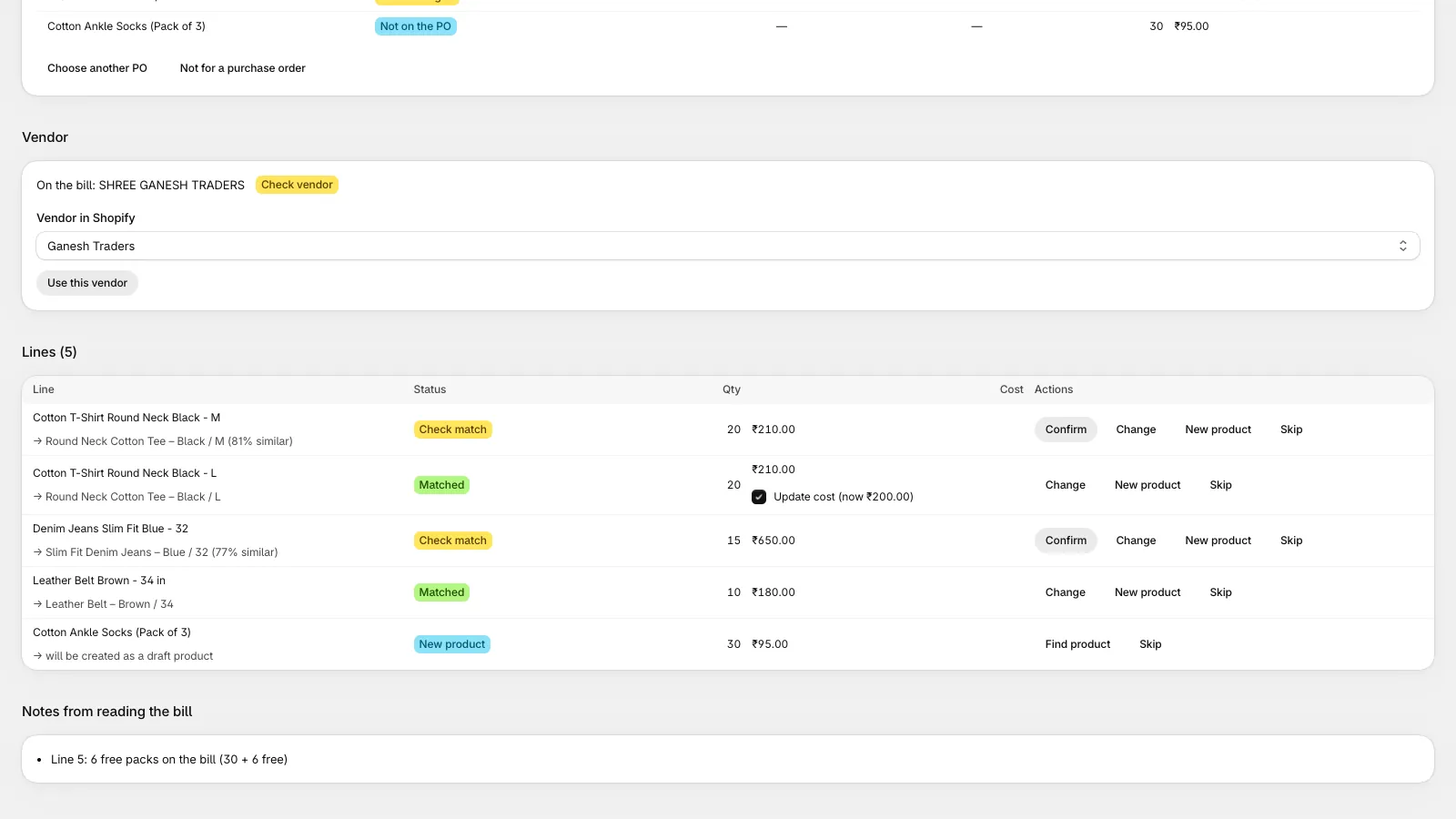
Checked against your purchase order
If the bill quotes a Shopify purchase order (or matches one), every line is compared with what you ordered and already received.
- Short, over and price-changed lines flagged
- Items not on the PO shown separately
- PO products are received on the PO’s own transfer
- Choose another PO, or mark the bill as not for a PO
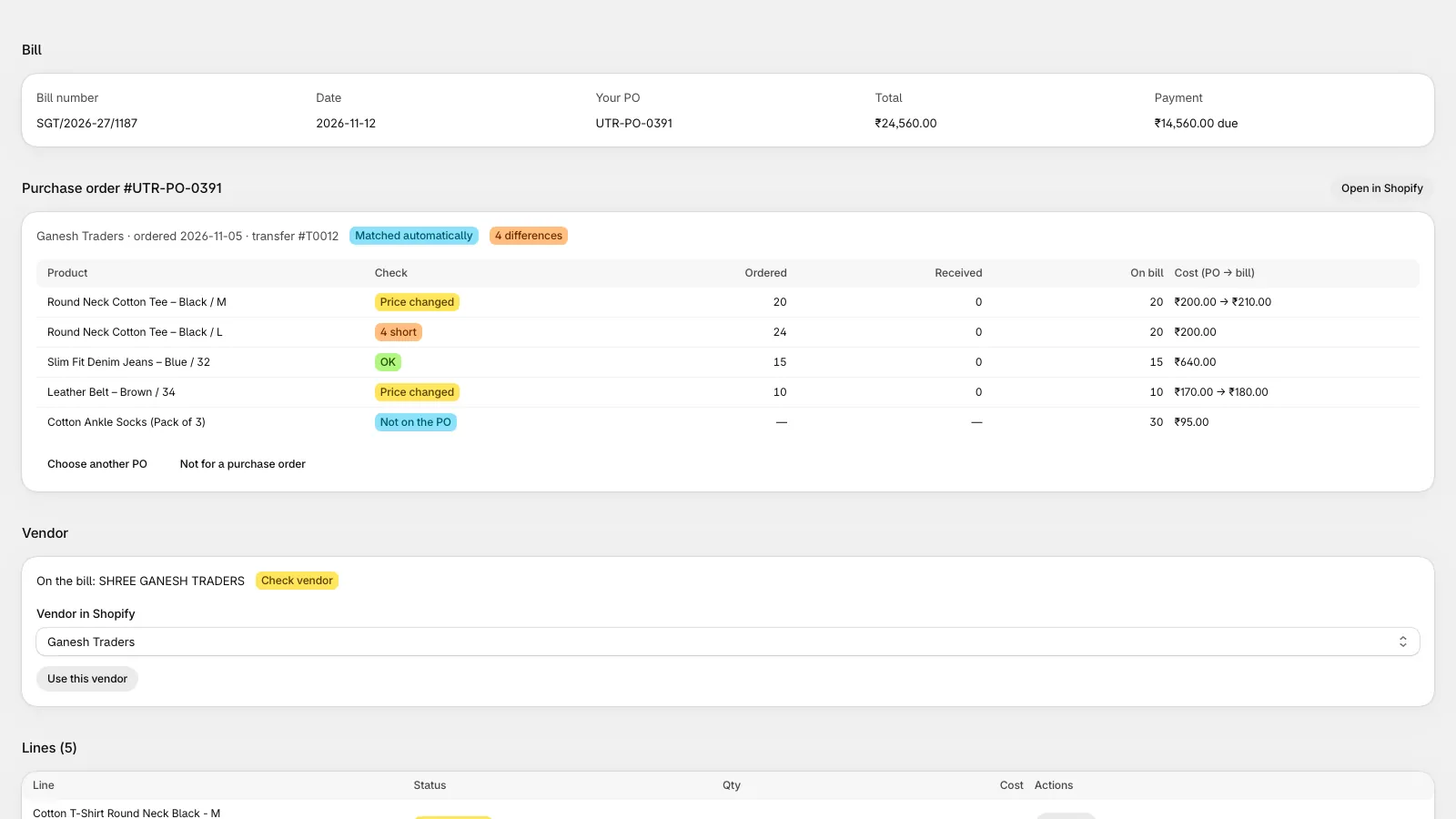
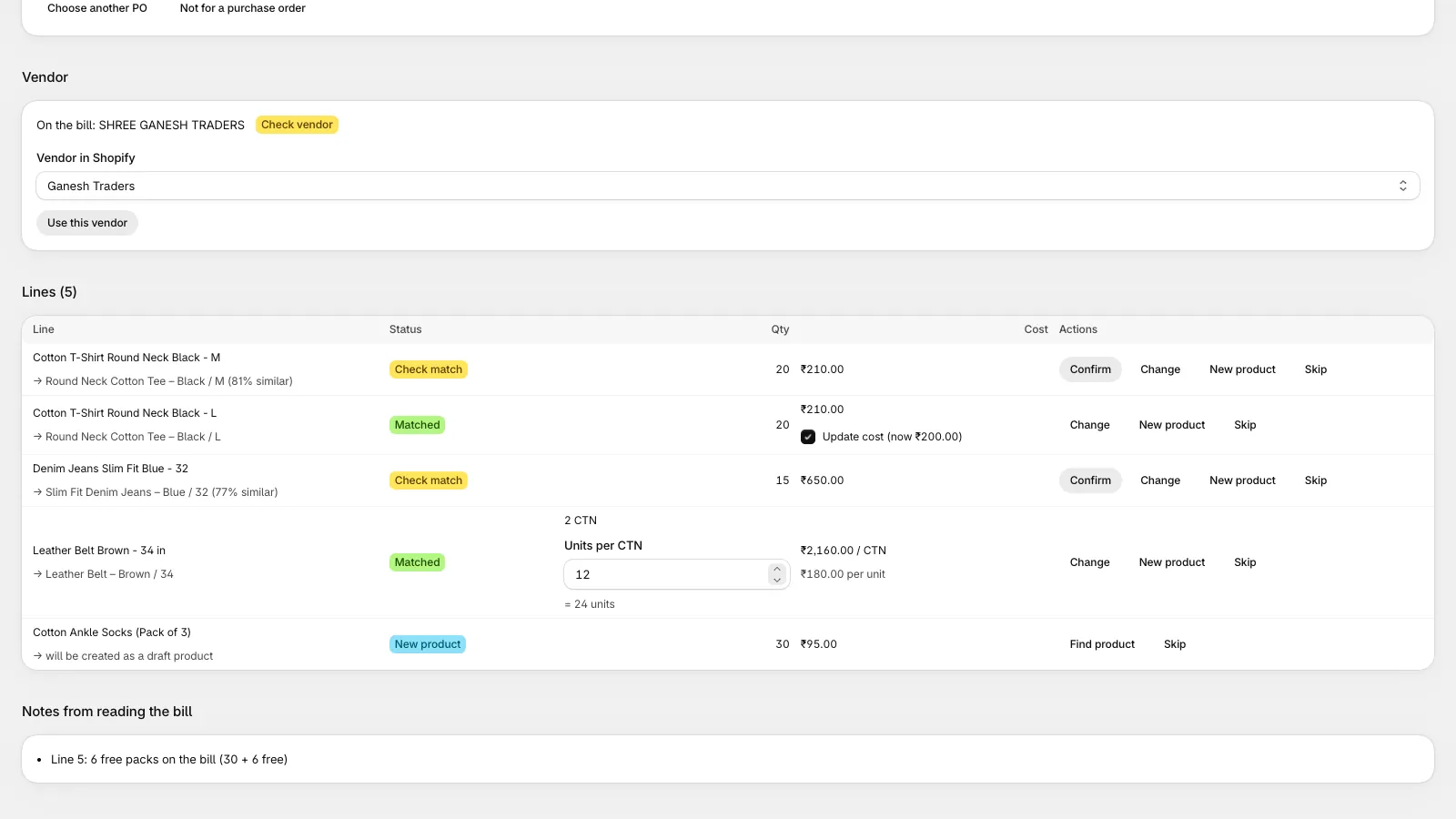
Cartons and dozens become units
Suppliers bill per carton, box or dozen; Shopify counts single units. Enter the units in a carton once and it is remembered for that supplier and product.
- “2 CTN × 12 = 24 units” shown on the line
- Cost per unit worked out for you (₹2,160 / 12 = ₹180)
- Dozens and pairs are converted automatically
- Push waits until every carton line has its size
The maths is checked, not trusted
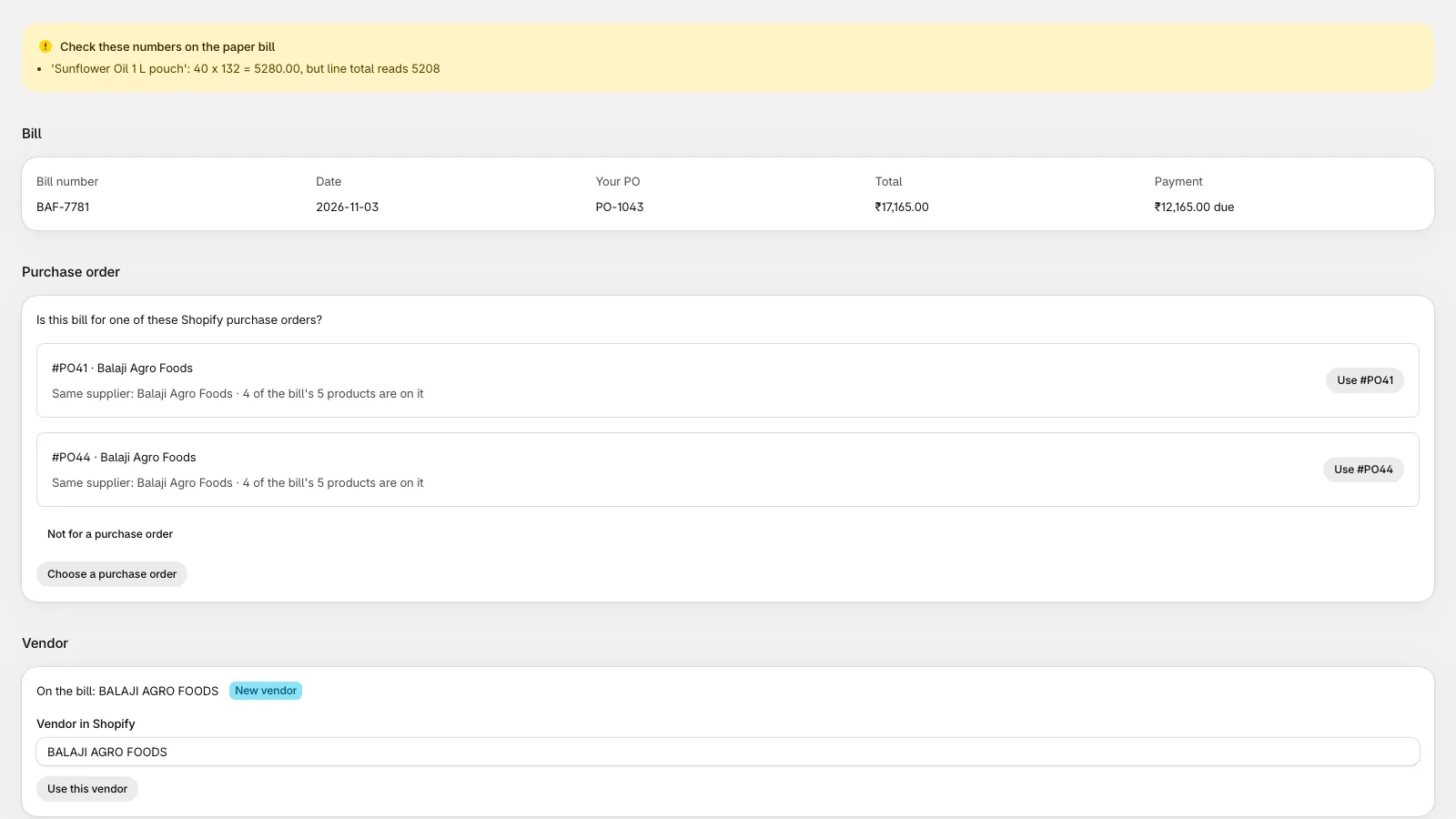
Line totals, tax and the grand total are checked in code. A vendor’s mistake is shown to you as written on the bill, not silently corrected.
- GST invoices: GSTIN checksum, CGST / SGST / IGST
- Handwritten received quantities: “8 of 10 (2 short)”
- Free and scheme units counted
- Notes from reading the bill listed for you
You decide what reaches Shopify
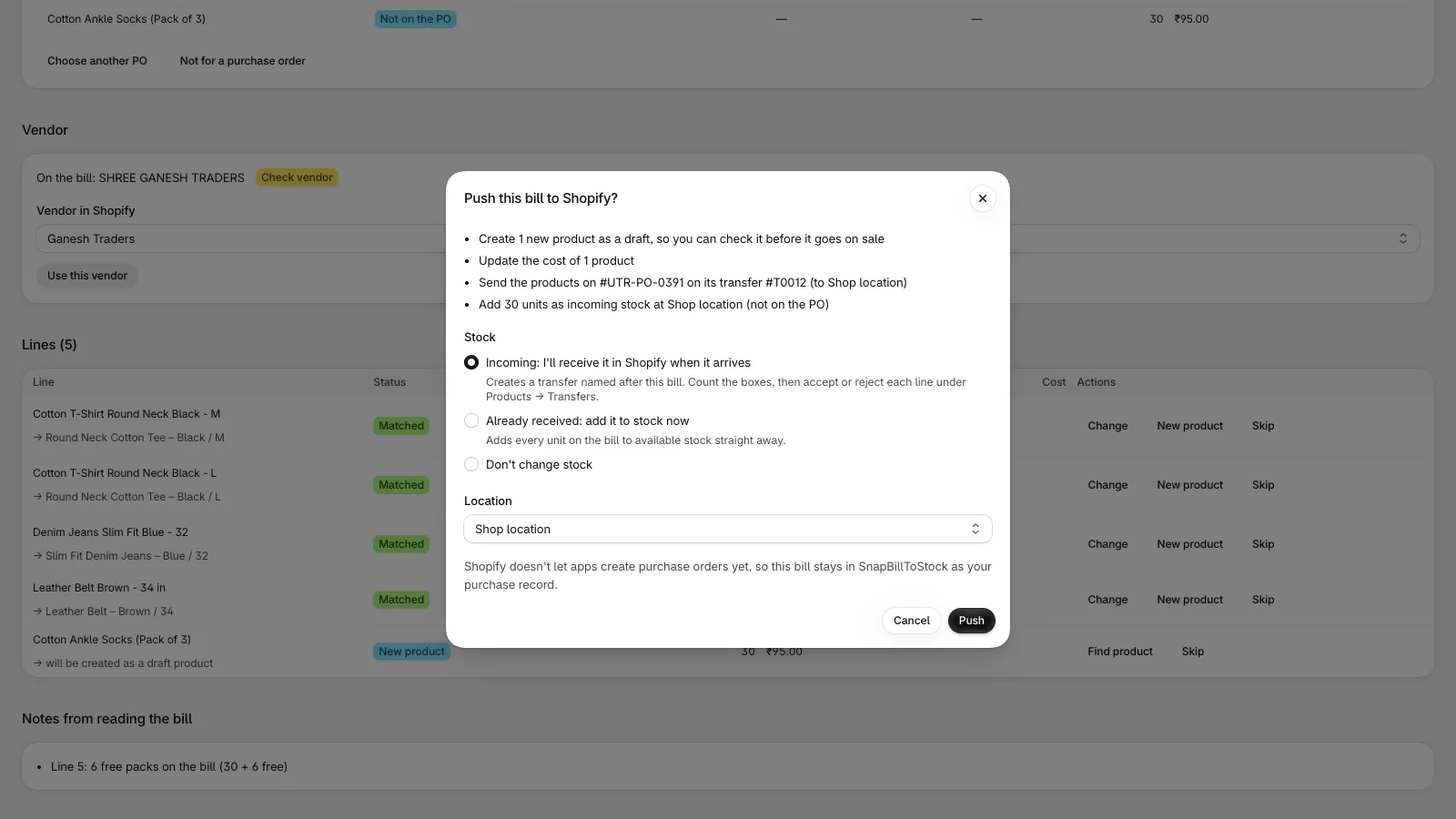
Before anything changes, a summary shows the products to create and the costs to update, and you choose how the stock arrives.
- Costs updated only where you ticked “update cost”
- New products created as drafts with the supplier as vendor
- Stock: none, incoming (receive later) or received now
- Choose the location; a retry never adds stock twice
Stock through Shopify inventory transfers
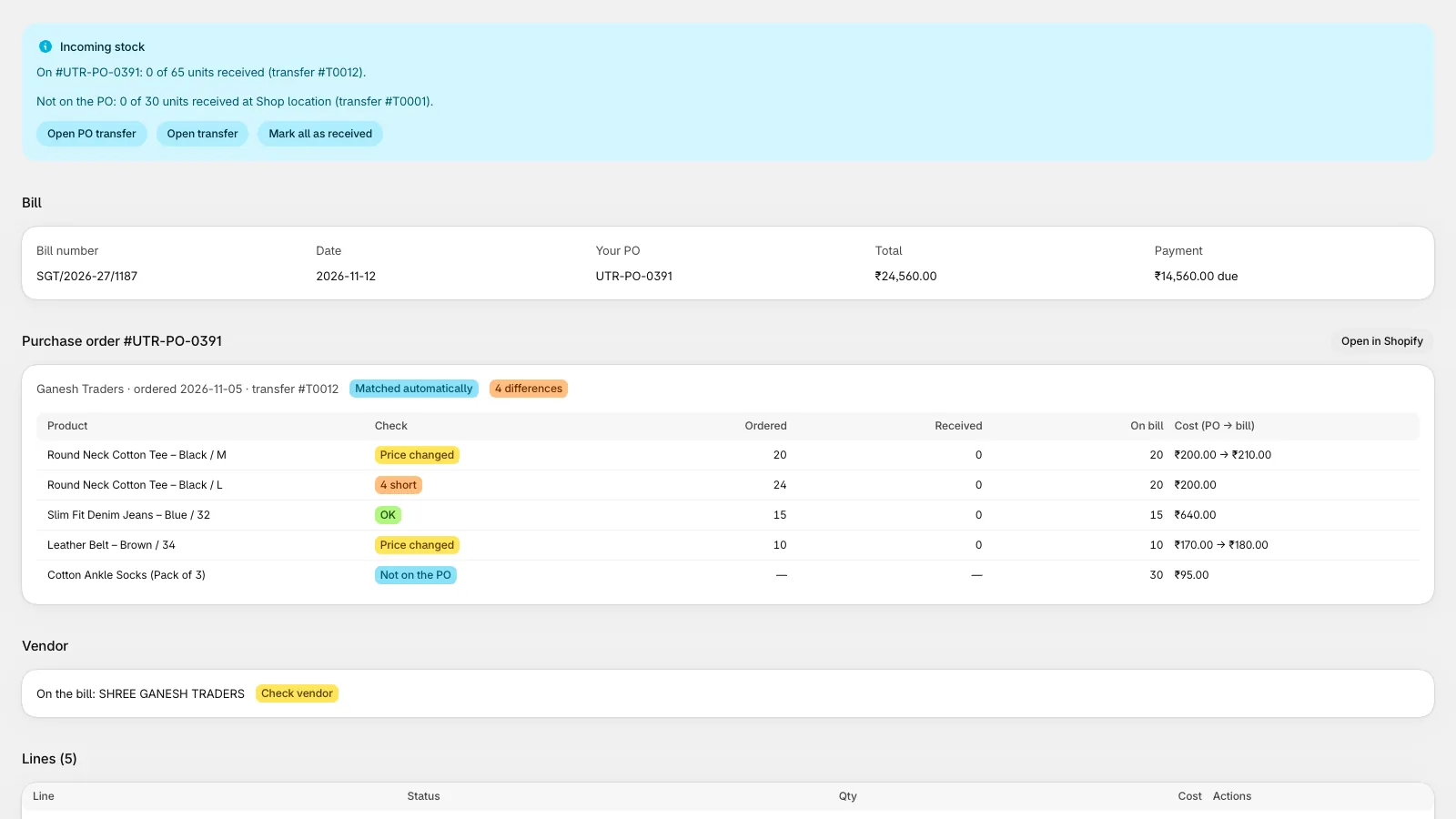
Stock arrives as a Shopify transfer you can see in the admin. Mark it received when the goods arrive, or receive it right away.
- Clear status: units incoming, received, rejected, cancelled
- Open the transfer in Shopify with one click
- Rejected and cancelled units are never added to stock
- Changes made in the Shopify admin are picked up
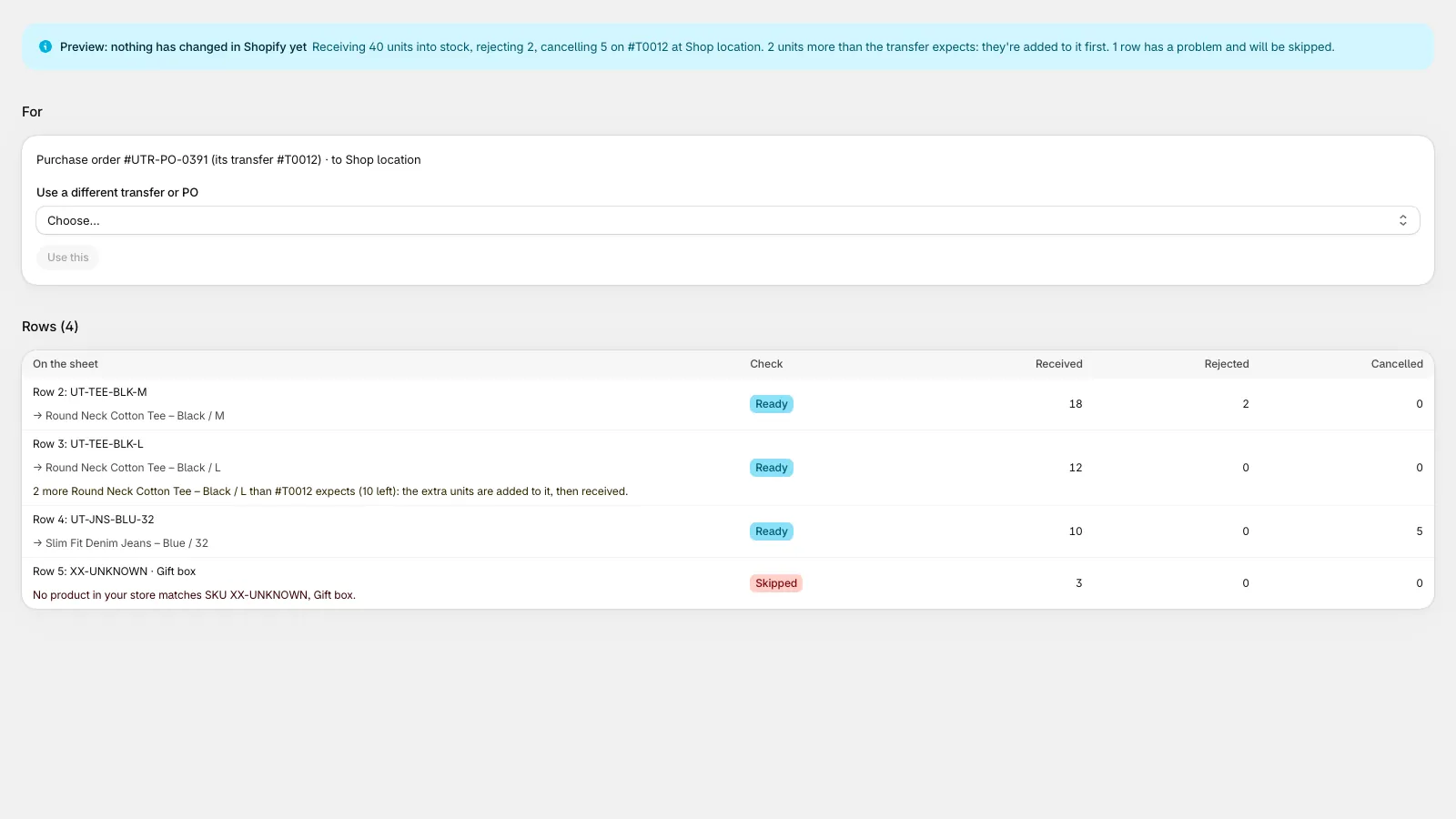
Receive from your warehouse count sheet
Upload a CSV or Excel count for a transfer, a purchase order or a supplier bill number. You see a preview of every row before anything is received. Download a sample sheet.
- Received, damaged (rejected) and missing (cancelled) in one sheet
- Extra units the supplier sent are added and received
- Unknown products are flagged, never guessed
- Partial receiving: the rest stays open
- Several sheets at once: one receipt per sheet
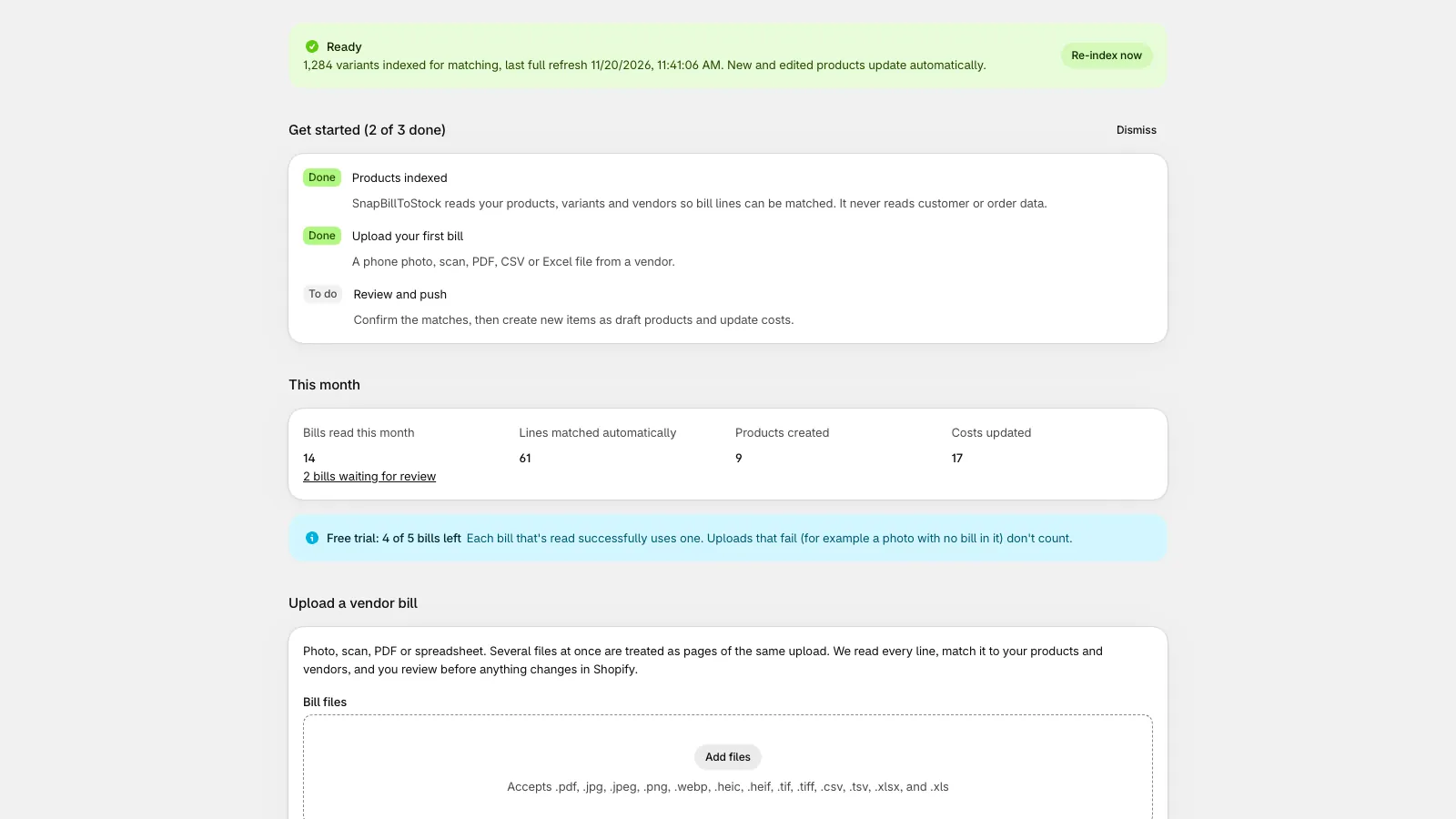
Everything at a glance
Upload from the home screen, see bills waiting for review, and what SnapBillToStock did for you this month.
- Bills read, lines matched, products created, costs updated
- Recent uploads and their status
- Bills left on your plan
- Your catalogue stays in sync automatically
Sample count sheets
Start from one of these, or use your own sheet: column names are matched loosely (“Qty received”, “Invoice no”, “EAN” all work). One row per product; leave a count blank or 0 if it doesn’t apply.
By supplier bill number
Use the supplier’s bill or invoice number. SnapBillToStock finds the transfer that bill was pushed to.
By Shopify transfer
Use the Shopify transfer number, like #T0012, shown on the bill after you push it.
By purchase order
Use the Shopify purchase order number, like #PO7. Stock is received on the PO’s own transfer.
Excel example
The same columns in Excel, with a “How to fill” tab that explains each one.
| Column | What goes in it |
|---|---|
| Bill, Transfer or PO | Which delivery the row belongs to. Use one of the three; you can also leave it out and pick the transfer in the app. |
| SKU, Barcode or Product | How the product is found: by barcode, SKU or the exact product and variant name. Unknown products are flagged, never guessed. |
| Received | Units that arrived in good condition. Units beyond what was expected are added to the transfer and received. |
| Rejected | Units that arrived damaged. They are never added to stock. |
| Cancelled | Units that never arrived and won’t come. Anything not counted stays open for a later sheet. |
| Note | Optional, for your own record (“2 torn”). |
The details
| Files | Photos (JPG, PNG, HEIC), PDF, CSV, Excel · up to 10 files per upload (20 MB each, 40 MB in total, PDFs up to 50 pages) · files are deleted after reading |
|---|---|
| Matching | Barcode, SKU, name and variant, and your earlier choices per supplier; unsure matches always wait for you |
| What it changes in Shopify | Creates draft products, updates variant costs, creates inventory transfers and receives stock, only after you push |
| Stock options | None (products and costs only) · incoming (receive later) · received now · any active location |
| Purchase orders | Reads your Shopify purchase orders and compares them; Shopify doesn’t let apps create POs, so the bill stays in SnapBillToStock as your purchase record |
| Safety | Every write is idempotent: double clicks and retries never create duplicates or add stock twice |
| Permissions | Products (read/write), inventory, transfers and shipments (read/write), locations and purchase orders (read). No customer or order data. |
| Pricing | Free: 5 bills, once per store. Starter: $29 a month for 50 bills. Growth: $49 a month for 100 bills. Each bill read counts once, even when one file holds several. Billed through Shopify. |
Shopify questions
How do I get it on my Shopify store?
It’s launching on the Shopify App Store. Join the waitlist and we’ll email you when it’s listed; then you install it from the App Store in one click.
Does it work with my existing products?
Yes. It copies your catalogue (products, variants, SKUs, barcodes, vendors, costs) and keeps it in sync, so bill lines match what you already sell. Items you don’t sell yet become draft products.
Does it create Shopify purchase orders?
Not yet: Shopify doesn’t let apps create purchase orders. It reads your purchase orders, compares the bill with them, and receives stock on a PO’s transfer. The bill itself stays in SnapBillToStock as your purchase record.
How does stock get into Shopify?
Through a Shopify inventory transfer at the location you choose: incoming (you mark it received when the goods arrive), received at once, or no stock at all, just products and costs. Rejected or missing units are never added.
Will it change my costs or prices?
Only the costs you tick “update cost” on, per unit even when billed per carton. It never changes the selling price of your existing products; a new draft product takes the MRP or retail price printed on the bill, if there is one.
Which permissions does it ask for, and why?
Products (to match and create draft products), inventory, transfers and shipments (to bring stock in), locations (to choose where stock arrives) and purchase orders, read only (to compare bills). No customer or order data.
Does it work in the Shopify mobile app?
Yes: it opens inside the Shopify app on your phone, so you can photograph a bill and review it there.
What happens if I uninstall?
Access stops immediately. Your store’s data is deleted when Shopify sends its data-removal request (48 hours after uninstall), or sooner if you ask us.
How is it billed?
Free: 5 bills, once per store. Starter: $29 a month for 50 bills. Growth: $49 a month for 100 bills. Paid plans go through your Shopify bill; change plans in the app, or cancel any time by uninstalling.